PPAP
Quick tutorial for suppliers
This short video is a quick tutorial for suppliers. It shows how to respond to a PPAP your customer has shared with you in Jakamo. Customers can find the full workflow in the sections below.
Overview
PPAP (Production Part Approval Process) is Jakamo's application for running AIAG-standard part approvals with your suppliers: an 18-element document catalogue, five submission levels, and a per-element approval workflow between customer and supplier.
Access it from the Apps overview — PPAP has its own tile there. Click the tile, then Open app, or go directly to /sqm/ppaps.
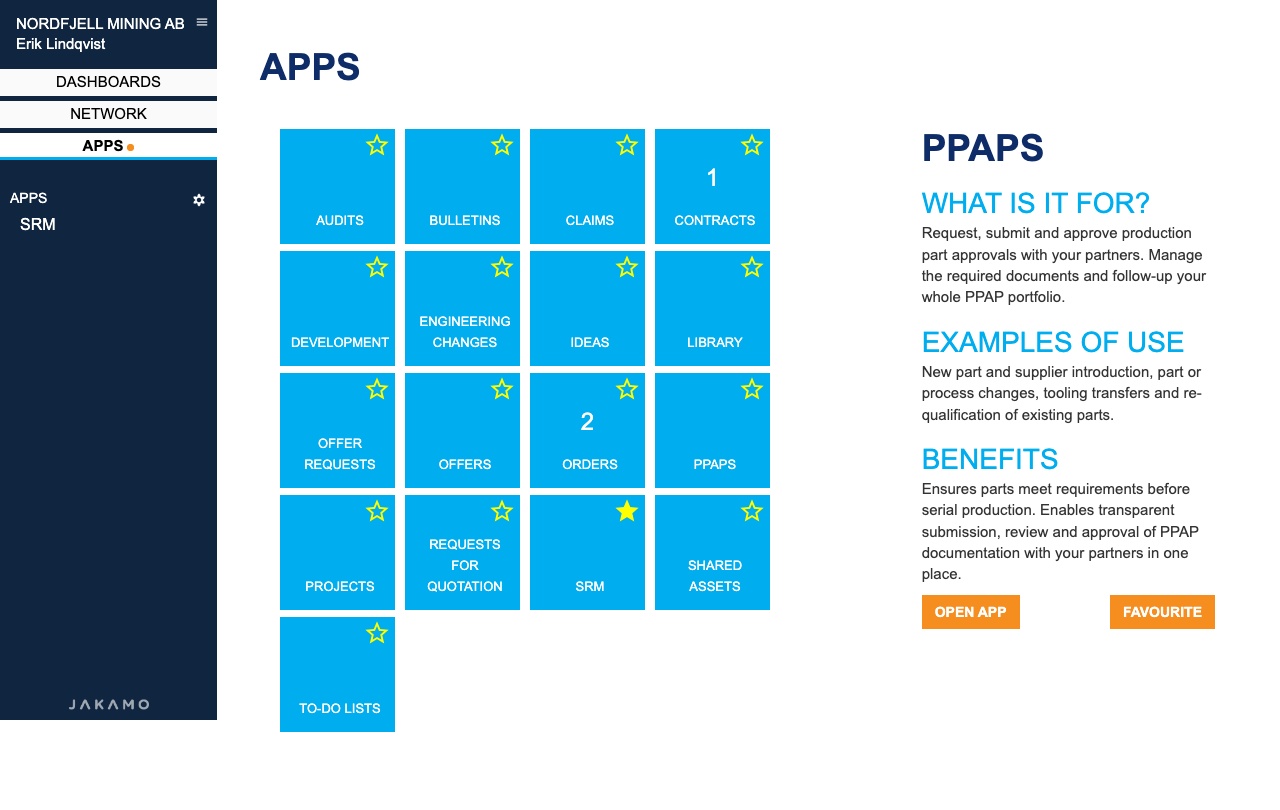
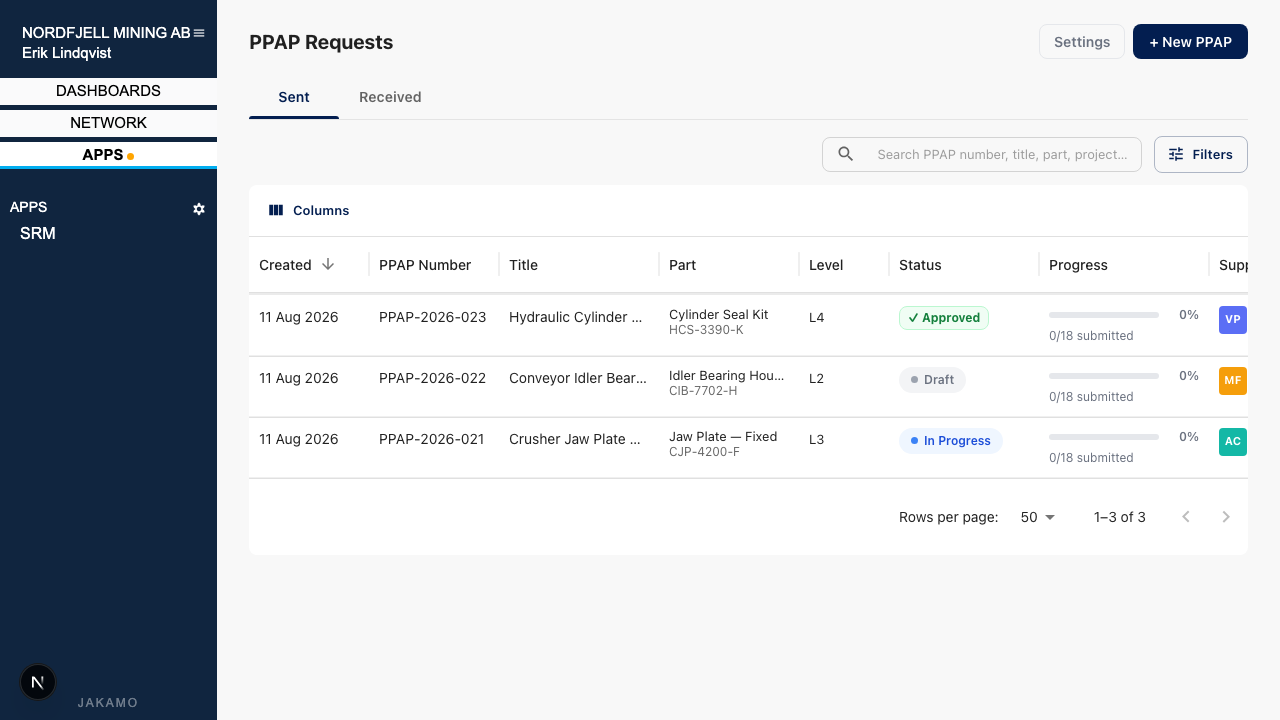
The list view is split into two tabs — Sent (PPAPs where your company is the customer/buyer) and Received (PPAPs where your company is the supplier). Each row shows the PPAP number, title, part, submission level, status, completion progress, and the counterparty:
1. Creating a new PPAP
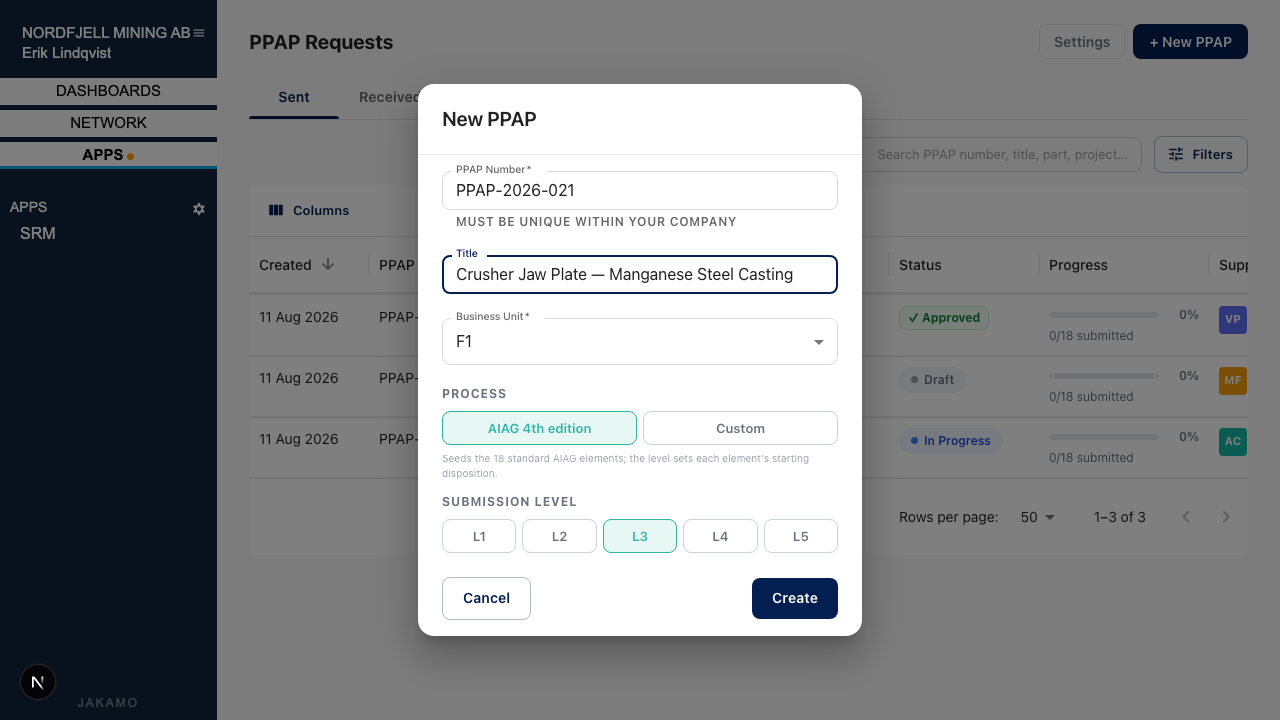
Click + New PPAP on the Sent tab. Give it a PPAP number (or leave it blank if your company has auto-numbering enabled), a title, and choose the process:
- AIAG 4th edition — seeds the standard 18-element catalogue. Pick a submission level (L1–L5); the level determines each element's starting disposition (
Submit,Retain, orOn request). Level 3 is the common default and requires all but two elements (Master Sample, Checking Aids) to be submitted. - Custom — starts with a blank, free-form element list instead of the AIAG catalogue.
If your company has business units enabled, you'll also choose which business unit owns the PPAP — this is required and cannot be changed later without reassigning ownership.
You can optionally start from a saved PPAP template instead of configuring the process and level manually.
2. Filling in the PPAP details
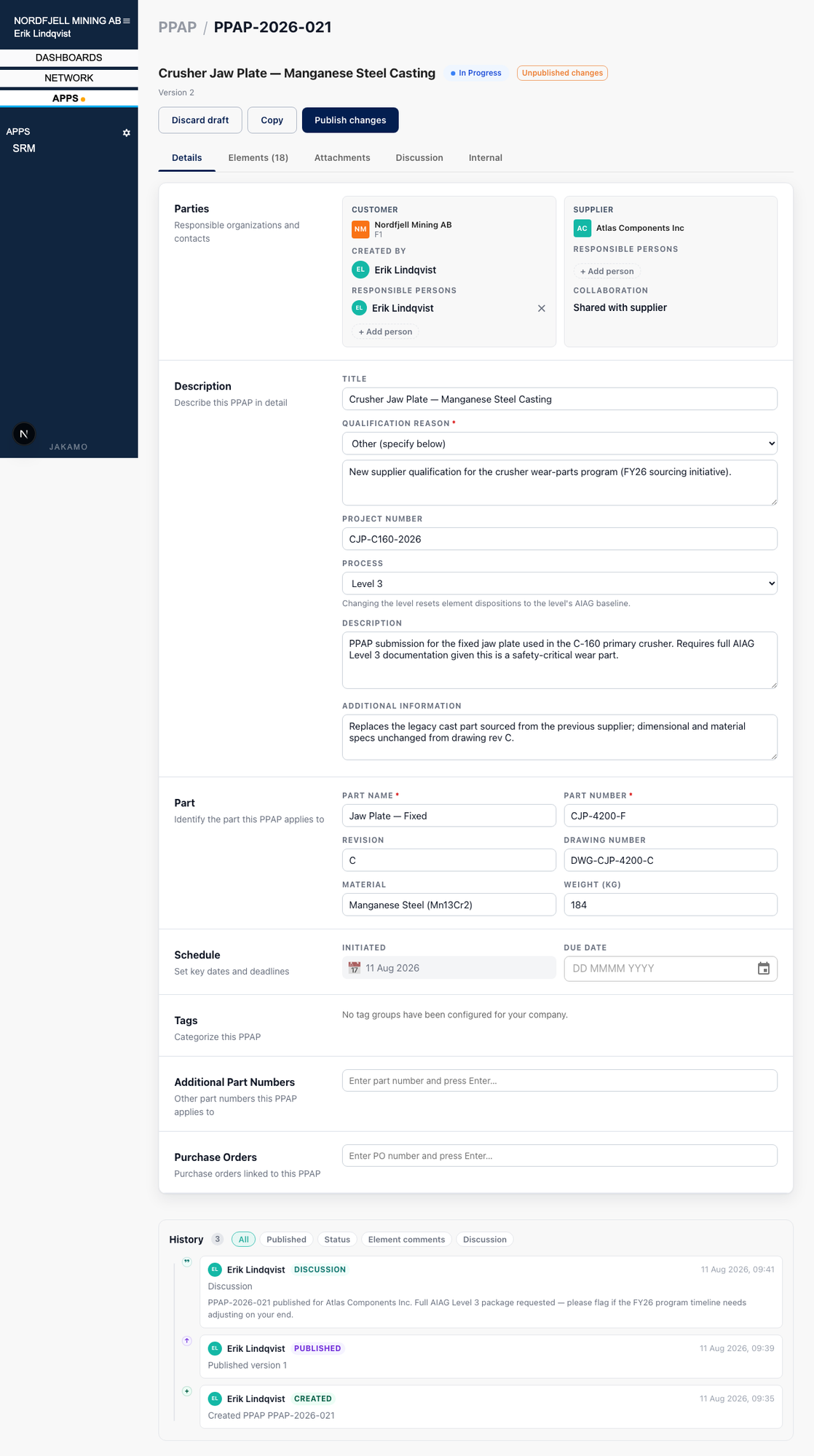
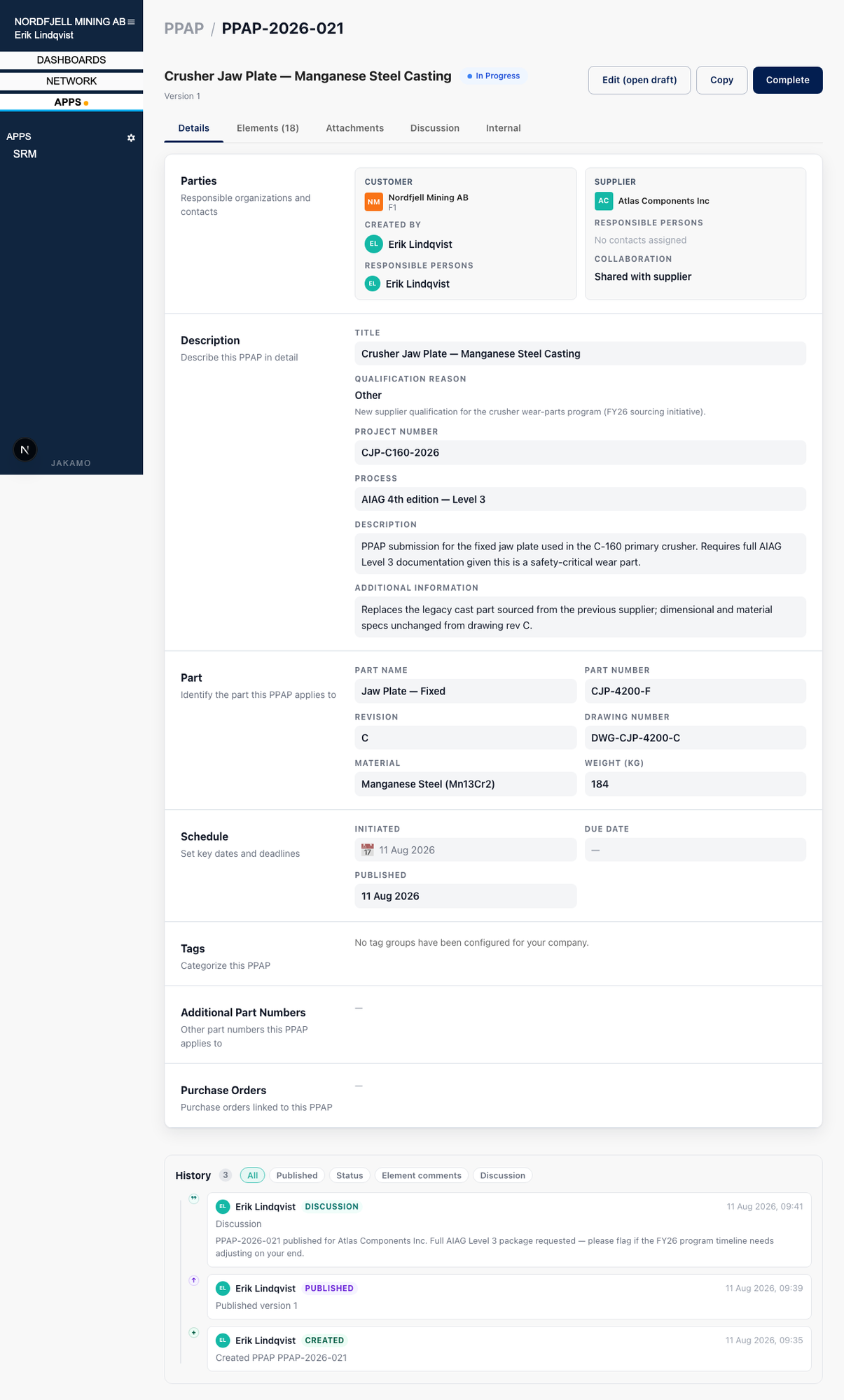
Once created, the PPAP opens as a Draft. Fill in:
- Parties — the supplier (searched from your Jakamo network connections) and their business unit if applicable. Responsible persons can be added on either side. Collaboration mode controls whether the supplier interacts with the PPAP directly (Shared with supplier) or whether your team manages responses on their behalf (Customer managed — useful for suppliers not yet onboarded to Jakamo).
- Description — title, qualification reason (a configurable list, e.g. New Supplier, Engineering Change, or free-text Other), project number, and a description/notes field.
- Part — part name, part number, revision, drawing number, material, and weight.
- Schedule — initiated date and an optional due date.
- Tags, additional part numbers, and linked purchase orders for cross-referencing.
The draft auto-saves as you go, and every change is recorded in the History log at the bottom of the page.
3. Elements — the 18-element checklist
The Elements tab lists the AIAG catalogue for the chosen submission level:
- Design records
- Engineering change documents
- Customer engineering approval
- Design FMEA
- Process flow diagram
- Process FMEA
- Control plan
- Measurement system analysis (MSA)
- Dimensional results
- Material / performance test results
- Initial process studies
- Qualified laboratory documentation
- Appearance approval report (AAR)
- Sample product
- Master sample
- Checking aids
- Records of compliance with customer-specific requirements
- Part submission warrant (PSW)
For each element you can set who is responsible (Customer or Supplier) and the disposition (Submit, Retain, or On request) — use Retain all / Exclude all to adjust the two non-default elements in bulk. Elements not marked for submission are still tracked but won't block the supplier's response.
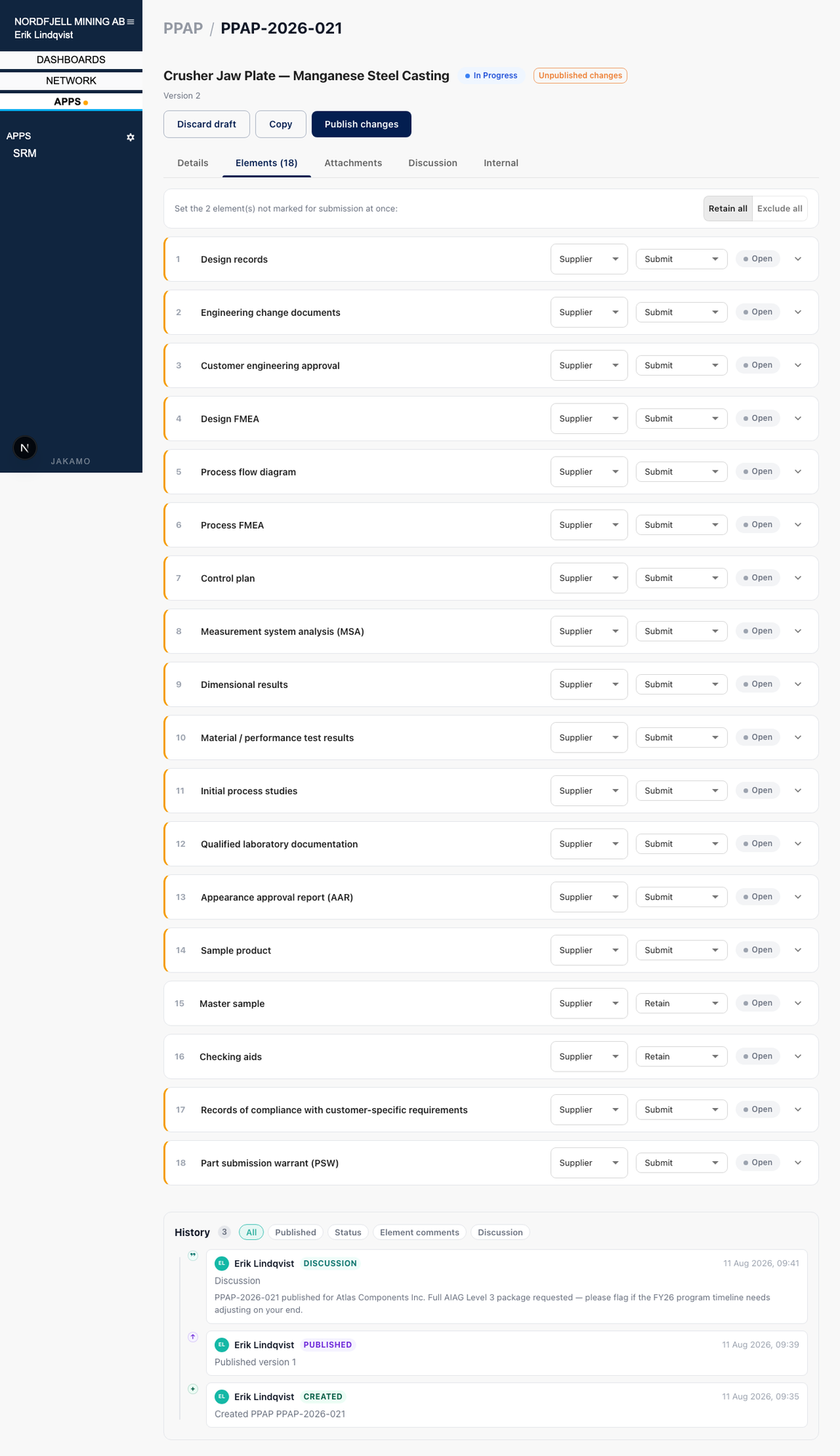
Documents for each element are attached directly on that element's row (expand it to upload), separate from the general Attachments tab described below.
4. Publishing and the supplier response
When the draft is ready, click Publish. This locks in Version 1 and moves the PPAP to In Progress — the supplier now sees it in their Received tab (if Shared with supplier collaboration is selected) and can act on it.
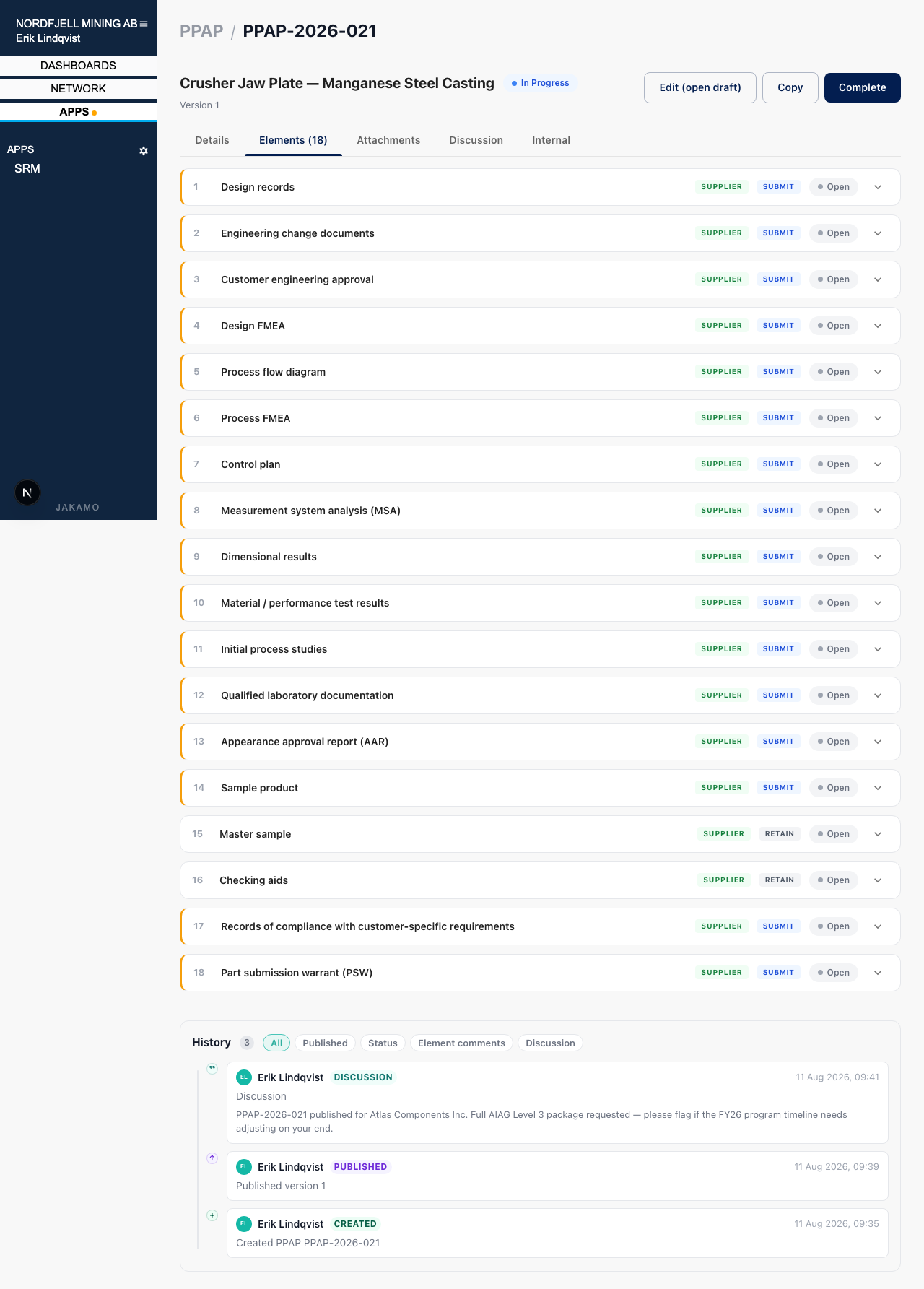
Once published, the Elements tab shows a live status pill per element (e.g. Open) alongside the responsible party and disposition:
On the supplier's side: the supplier opens the PPAP from their Received tab, uploads the requested documents against each element, and submits a chosen subset of elements in one action — they don't have to complete every element before submitting what's ready. Your team then reviews each submitted element and marks it Approved, Interim Approved, or Rejected. Rejected elements go back to the supplier for resubmission.
Editing after publishing: the buyer can click Edit (open draft) to make changes, which opens a new working version without disturbing the supplier's view of the currently published one — the supplier always sees the latest published version, not your in-progress edits.
When every required element has been approved, mark the PPAP Complete using the button in the top-right corner. You can also Copy an existing PPAP to start a similar one quickly, or Reopen a completed PPAP if a new part revision needs re-qualification.
5. Attachments and discussion
Two tabs handle general (not element-specific) collaboration:
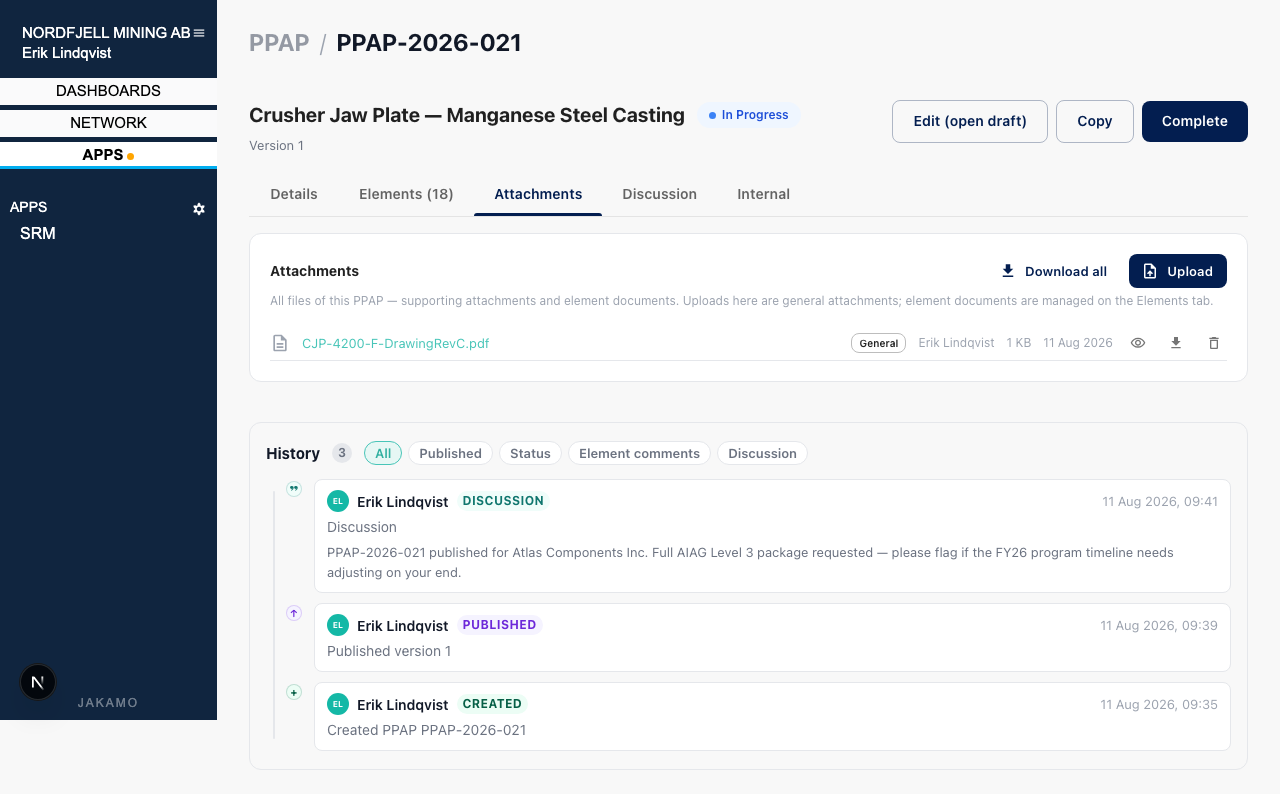
- Attachments — general supporting files for the PPAP as a whole. Element-specific documents belong on the Elements tab instead.
- Discussion — a running thread visible to both customer and supplier, useful for questions, timeline changes, or context that doesn't belong on a specific element. It appears once the PPAP is published, and only on PPAPs Shared with supplier. Before publishing, and on Customer managed PPAPs, use the Internal tab to discuss the PPAP within your own team.
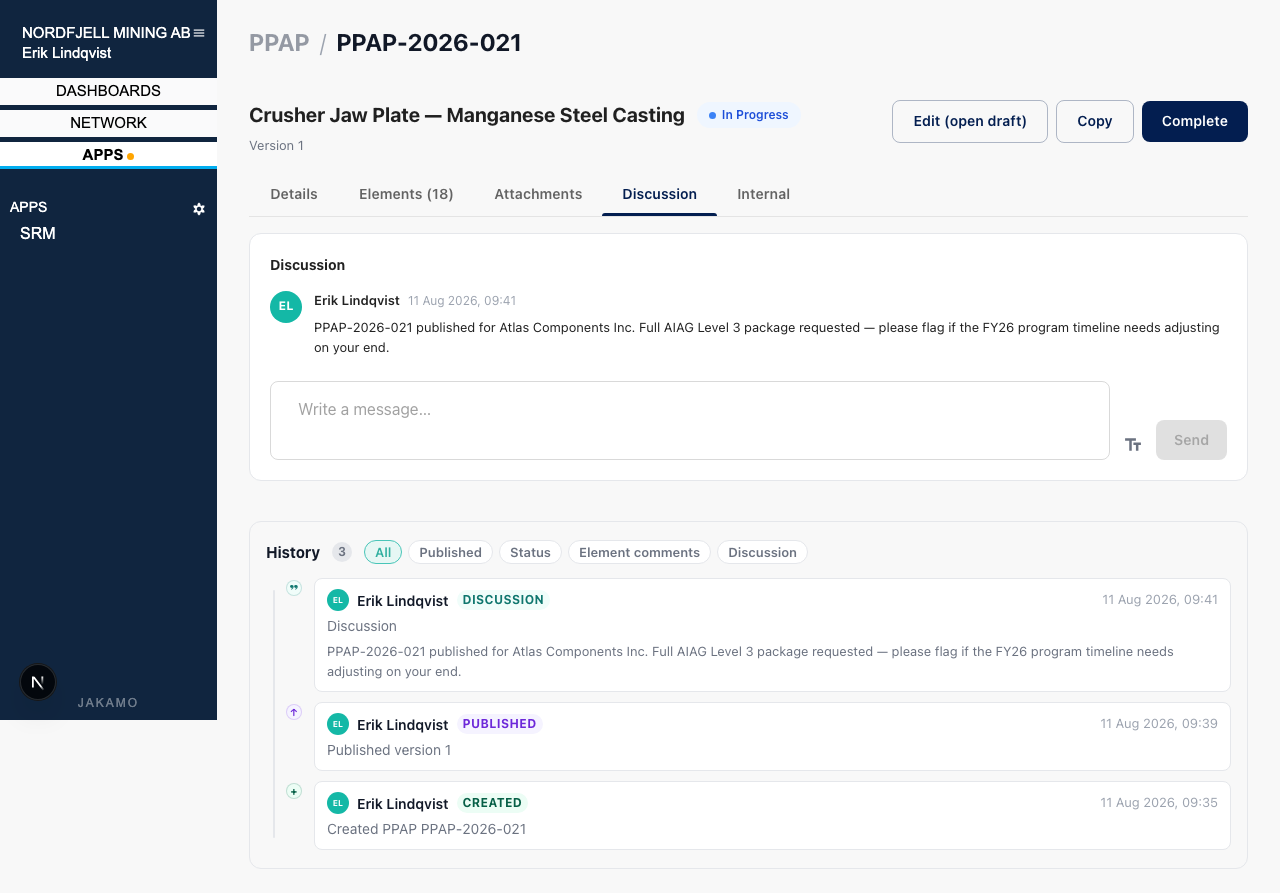
6. Internal collaboration
If your company is on a premium or enterprise plan, the Internal tab gives you a private files and discussion thread visible only to people at your own company — for example, coordinating internally before responding to the supplier, without that conversation leaking into the shared view.
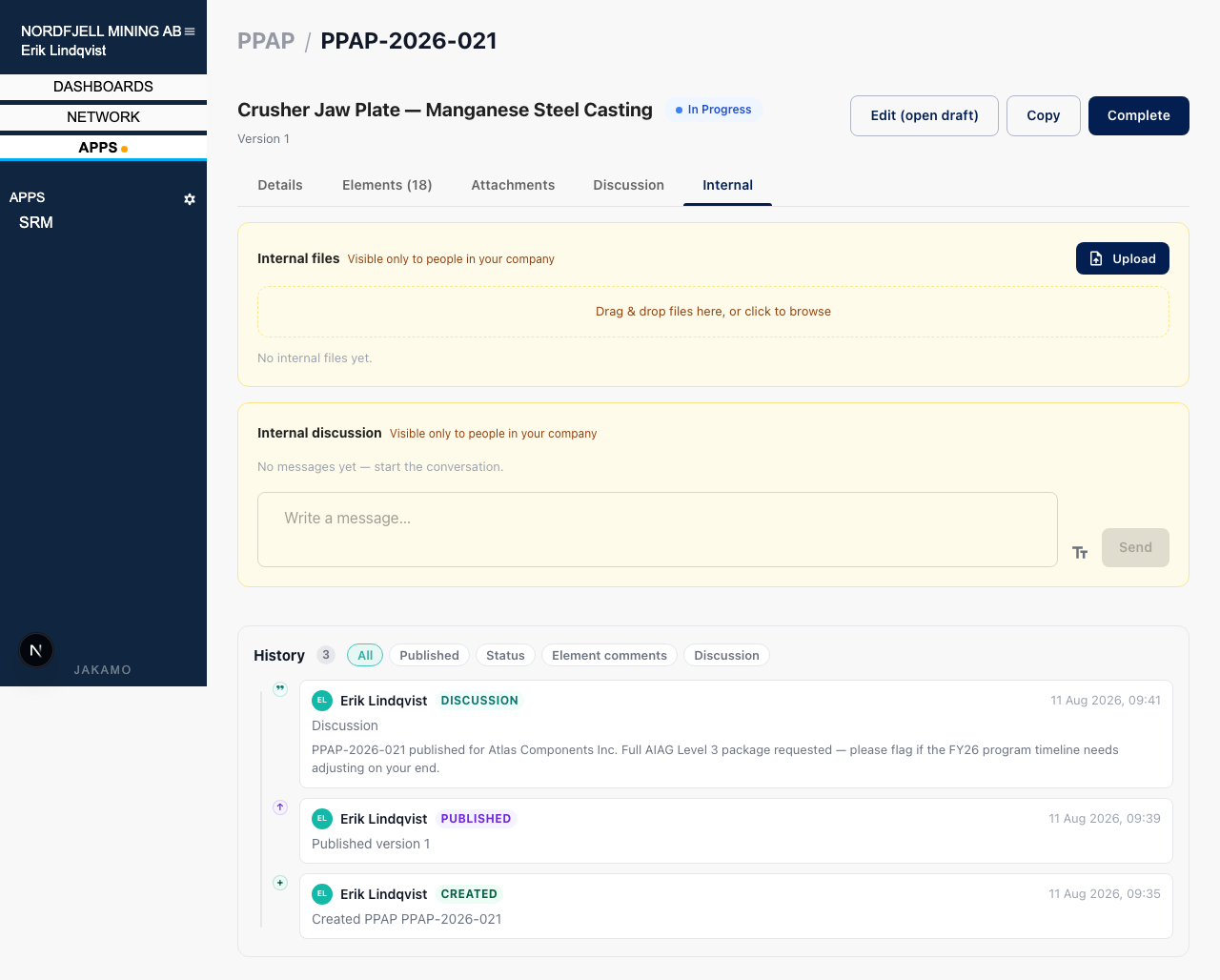
This mirrors the pattern used elsewhere in Jakamo (see Internal discussion in Engineering Changes and other apps) — internal content is always clearly marked so nobody mistakes it for something the supplier can see.
7. Settings: templates & numbering
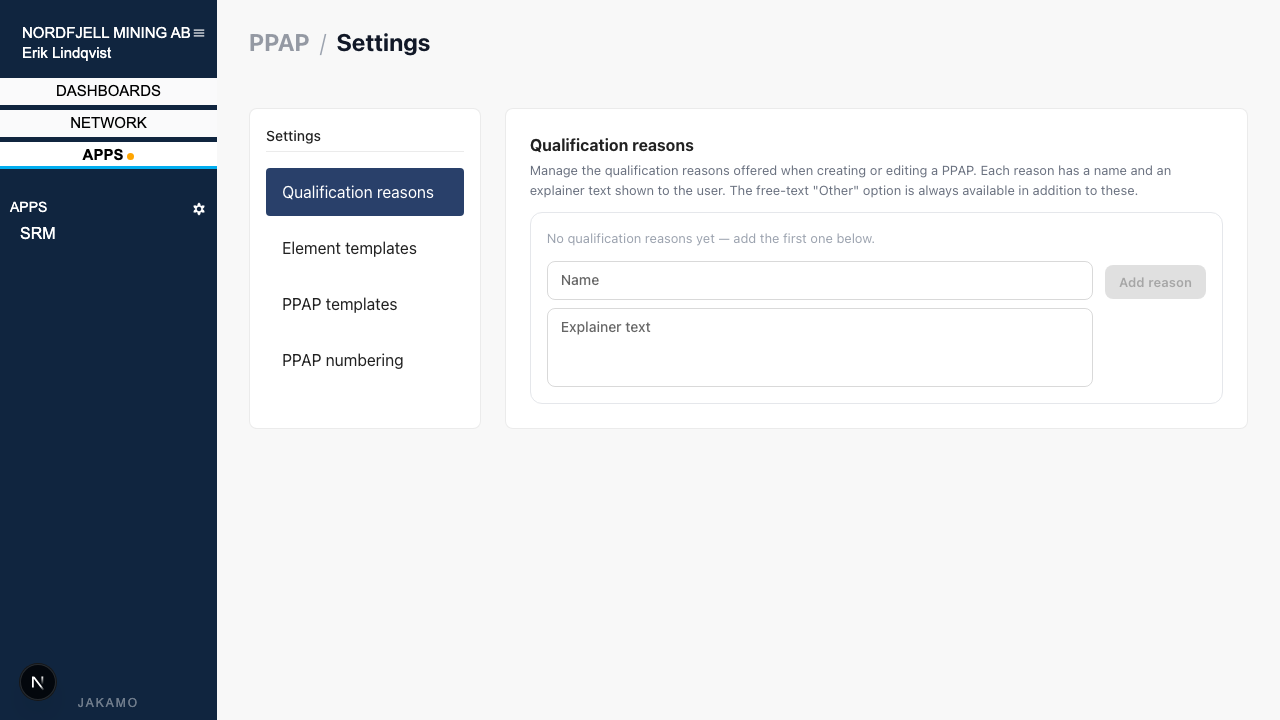
Under Settings (visible to company admins), configure company-wide PPAP behavior:
- Qualification reasons — the dropdown options offered when creating a PPAP (name + explainer text). The free-text Other option is always available in addition.
- Element templates — standard instructions or expected documents shown to suppliers for a given element key, applied across every PPAP regardless of that PPAP's own disposition settings.
- PPAP templates — save any PPAP (draft or published) as a reusable template via Save as template; new PPAPs can then be created directly from it, inheriting the process, level, elements, and (for supplier-specific templates) the counterparty.
- PPAP numbering — turn on auto-generated PPAP numbers so users don't have to invent a numbering scheme by hand.
8. Notifications
Jakamo notifies people about PPAP events both in Jakamo and by email.
Currently, PPAP notifications go only to the responsible persons added to the PPAP under Parties. Other users at your company or the supplier's company are not notified, and there are no notification settings for PPAP to opt in or out. To make sure someone hears about a PPAP, add them as a responsible person on it.
A few rules apply to every notification:
- You are not notified about your own actions. If you submit, review or complete something, your colleagues among the responsible persons are notified, but you are not.
- The supplier is notified only on PPAPs shared with them. On a Customer managed PPAP the supplier is not using Jakamo, so only the customer's responsible persons are notified.
- Saving a draft does not send notifications; publishing it does. Attachments and comments on individual element rows do not send notifications either.
- Each notification links to the PPAP in your own view: Sent for the customer, Received for the supplier.
Supplier's responsible persons
Supplier responsible persons are notified when:
- The customer publishes the PPAP for the first time, and again each time the customer publishes an updated version.
- Elements are submitted, either by the customer or by a colleague at the supplier.
- The customer reviews an element: approves it, interim-approves it or rejects it. The customer's comment is included, so on a rejection you see the reason.
- A colleague at the supplier approves or rejects an element the customer provided and asked the supplier to approve.
- The customer completes the PPAP. The notification includes the outcome (e.g. Approved or Rejected) and the customer's message.
- Someone posts on the Discussion tab, whether from the customer or a colleague at the supplier. The Discussion tab is available once the PPAP is published.
- A colleague at the supplier posts on the Internal tab. Internal messages are never sent to the customer.
Customer's responsible persons
Customer responsible persons are notified when:
- Elements are submitted, either by the supplier or by a colleague at the customer. On a Customer managed PPAP, the notification says the submitted elements are awaiting review.
- The supplier approves or rejects an element the customer provided and asked the supplier to approve.
- A colleague at the customer reviews an element: approves it, interim-approves it or rejects it. This applies on both shared and Customer managed PPAPs.
- A colleague completes the PPAP. The notification includes the outcome and the completion message.
- A colleague publishes the PPAP, for the first time or as an updated version.
- Someone posts on the Discussion tab, whether from the supplier or a colleague at the customer.
- A colleague at the customer posts on the Internal tab. Internal messages are never sent to the supplier.
Earlier Jakamo releases ran PPAP as a manual template inside the Engineering Changes app, using generic tasks and task lists. This dedicated PPAP app replaces that workaround with a purpose-built AIAG element catalogue, per-element review, and structured supplier collaboration — no manual task setup required. Existing Engineering Changes with PPAP-style tasks are not migrated automatically; new PPAP qualifications should be created here going forward.
Didn't you find what you were looking for? Send an email to Jakamo support (support@thejakamo.com) and we will help you.