The basics of Jakamo for suppliers
You have registered and connected with your customer. This page covers the things suppliers most often ask support about:
- Add new users
- Manage company info
- Manage personal info
- Manage notifications
- Use Jakamo Docs
- Contact Jakamo Support
Not registered yet? Start from Suppliers — Start here.
Where to find the settings
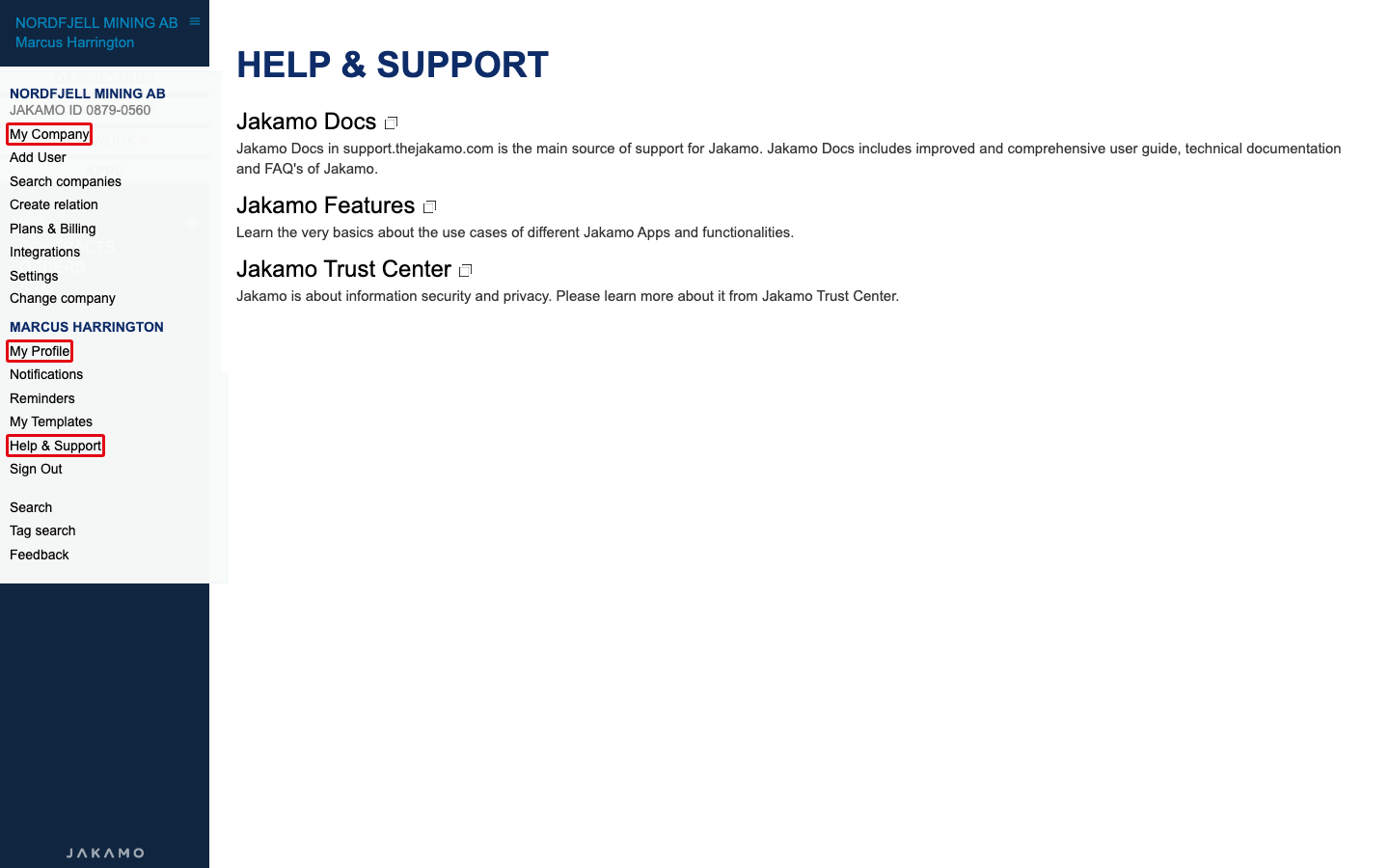
Click the menu icon (three lines) next to your company name at the top left. The menu has two parts:
- Your company — My Company, Add User, Search companies, Create relation, Settings, and more.
- Your name — My Profile, Notifications, Reminders, My Templates, Help & Support, Sign Out.
Add new users
Invite every colleague who needs Jakamo. Everyone in your company sees the same orders, so there is no extra setup per user.
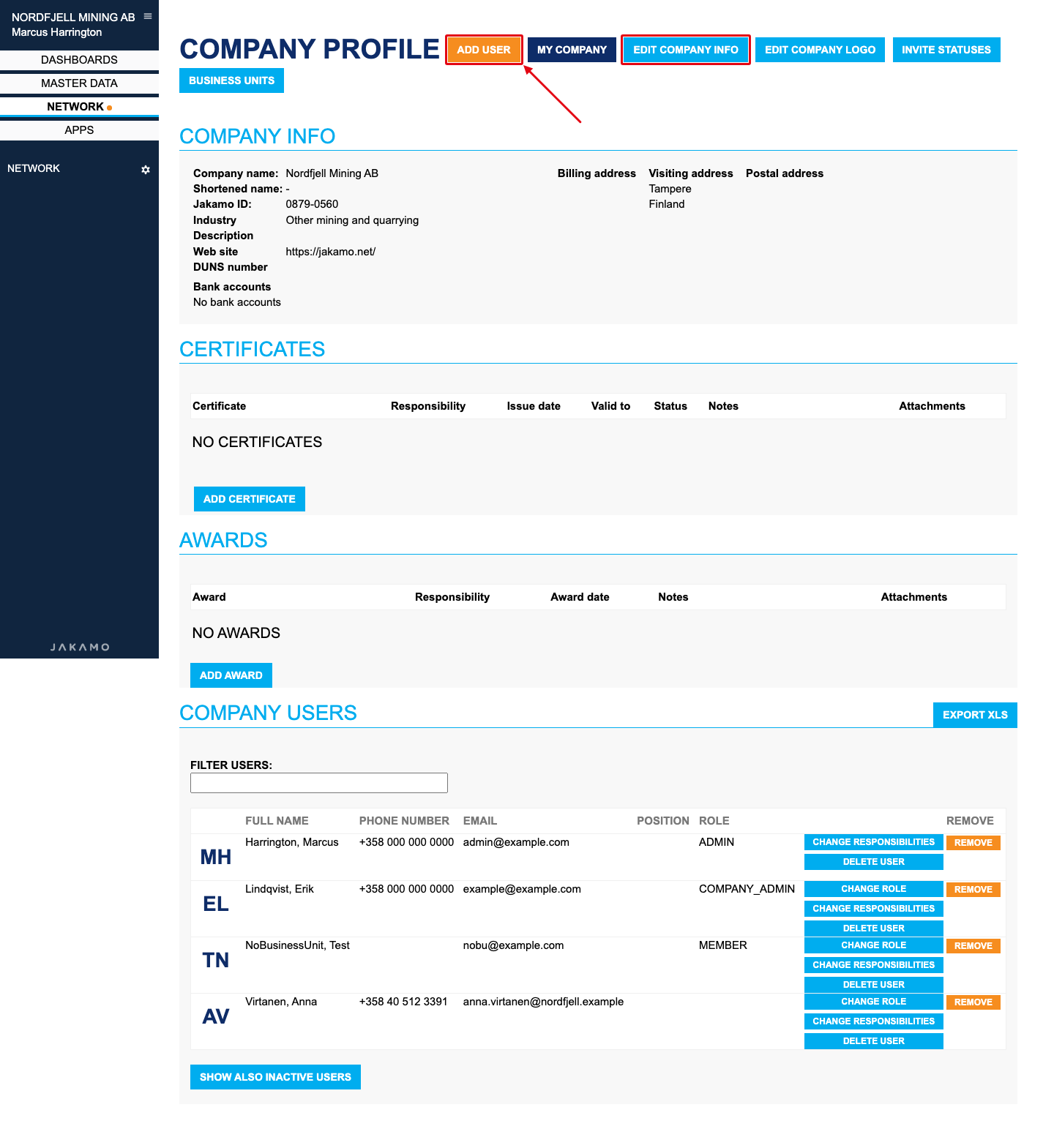
- Open the menu and click Add User (or click ADD USER on the My Company page).
- Enter the email address of your colleague. You can invite 1 to 3 people at a time.
- Select a role: Member suits most users; Company admin can also manage company settings and user roles.
- Add an optional message and send the invitation.
Your colleague receives an email and creates their own user profile.
Do not add your customers, other suppliers or external people to your company account. Everyone in your company account can see everything shared with you.
Keep the number of company admins small (2–5 is a good rule). If your company uses SSO, users are managed in your own Active Directory instead. Details: Add user.
To remove a user who has left, use Remove next to them on the My Company page: Inactivate user.
Manage company info
Your customer and other Jakamo users find you by your company info, so keep it correct.
- Open the menu and click My Company.
- Check Company info. Your Jakamo ID is shown here — send it to your customer if they ask for it.
- Click EDIT COMPANY INFO to change name, address, web site and other details.
- Click EDIT COMPANY LOGO to upload your logo.
More: My Company.
Manage personal info
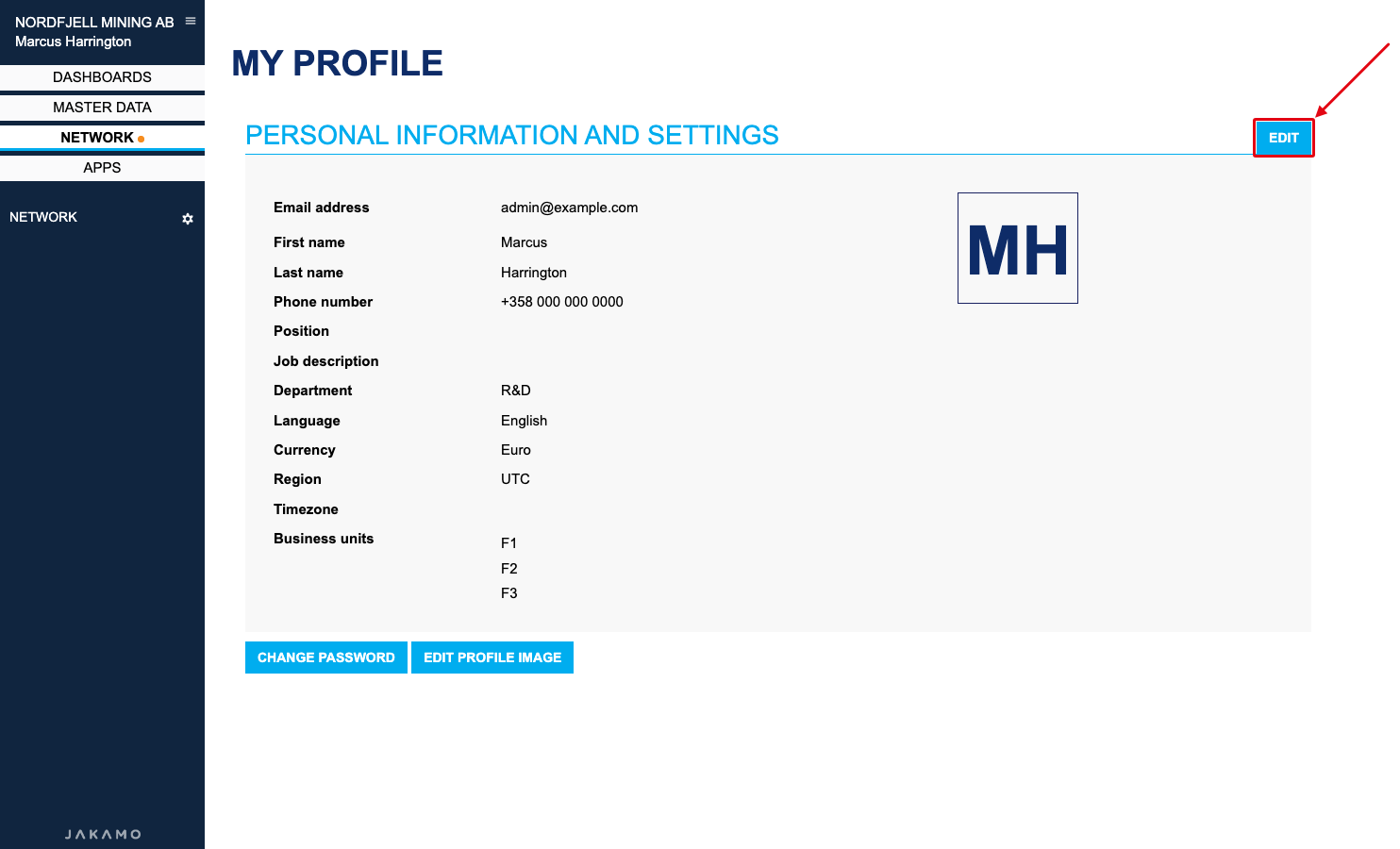
- Open the menu and click My Profile.
- Click EDIT to change your name, phone number, language, currency and timezone.
- Save your changes.
Use CHANGE PASSWORD to change your password and EDIT PROFILE IMAGE to add a picture. Forgot your password? Use Forgot your password? on the login page.
More: My Profile.
Manage notifications
Notifications tell you about new orders and changes from your customer.
- Open the menu and click Notifications.
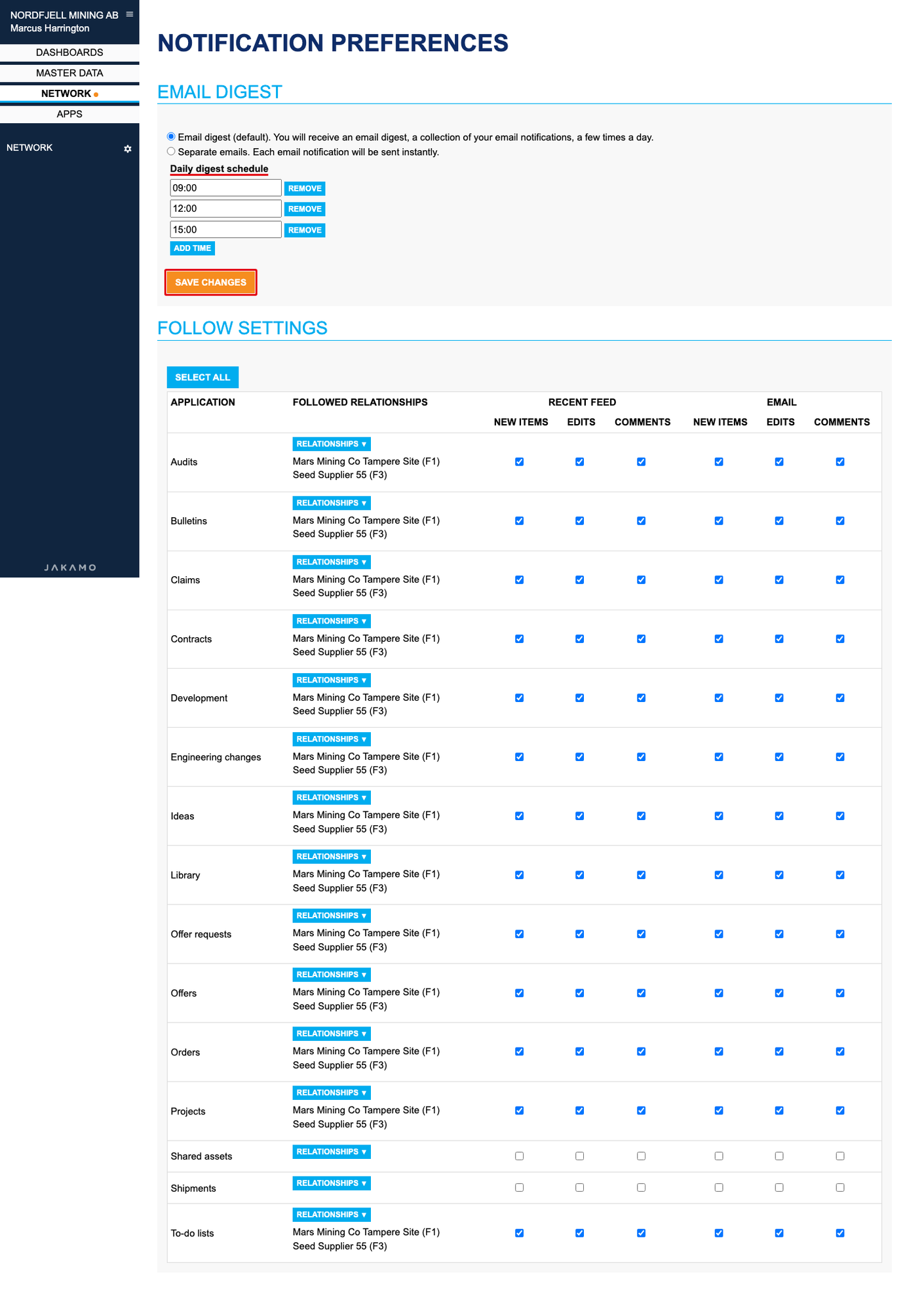
- Choose Email digest (a few emails a day, default) or Separate emails (one email per notification).
- For the digest, set the times you want to receive it under Daily digest schedule.
- Click SAVE CHANGES.
- Under Follow settings, tick what you want to see in the recent feed and in email for each application (new items, edits, comments).
Keep Orders ticked for the relationships you work with. See How do I make sure I get notified about new orders.
More: Notifications.
Use Jakamo Docs
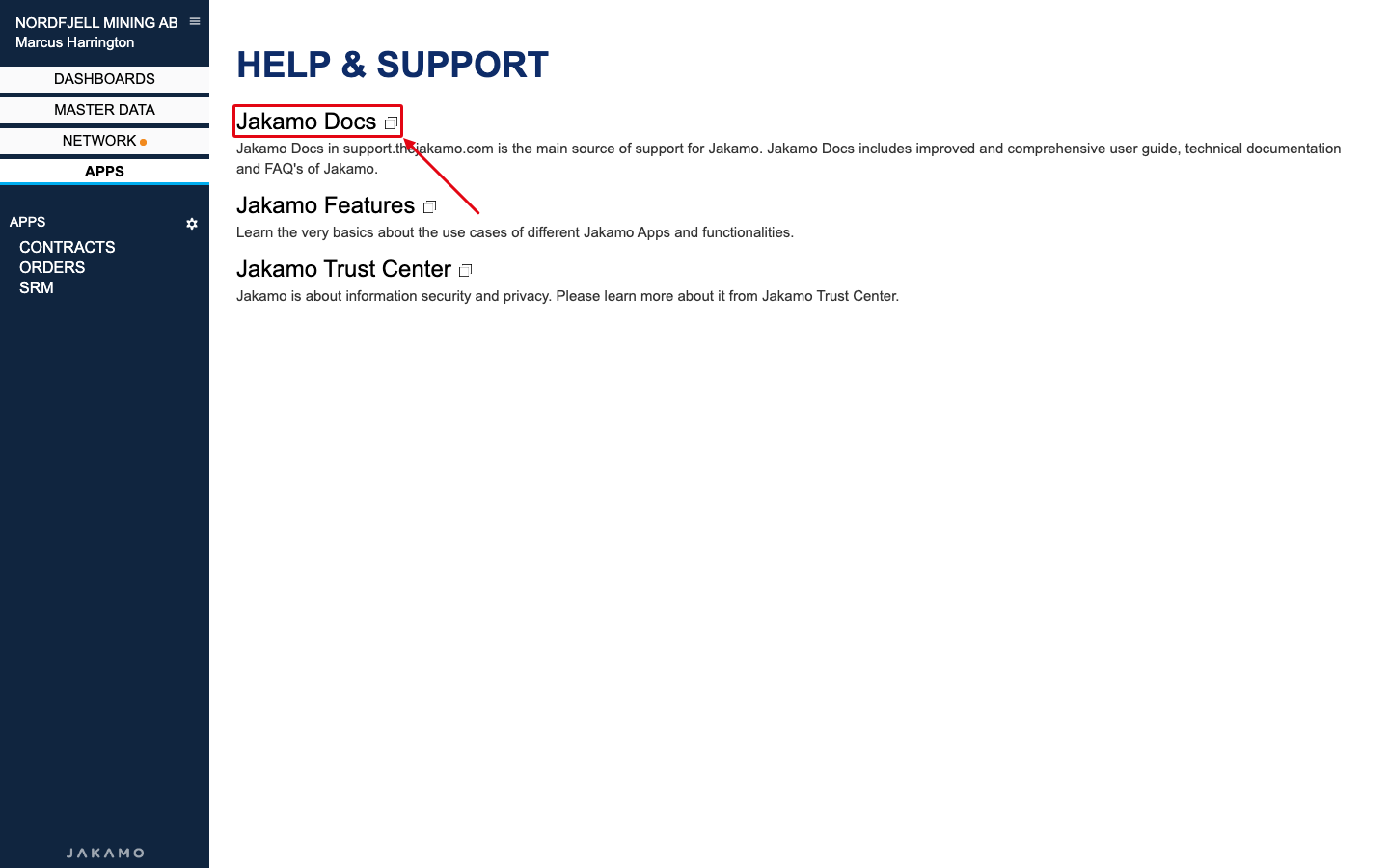
Jakamo Docs (support.thejakamo.com) is the main source of help: user guide, technical documentation and FAQ.
- Open the menu and click Help & Support.
- Click Jakamo Docs to open it in a new tab.
- Use the search at the top, or browse the user guide on the left.
The same page also links to Jakamo Features (what the apps do) and the Jakamo Trust Center (security and privacy).
Contact Jakamo Support
Cannot find your answer in Jakamo Docs? Email support@thejakamo.com. Include your company name, which customer you work with, and what you were trying to do — screenshots help.
Didn't you find what you were looking for? Send an email to Jakamo support (support@thejakamo.com) and we will help you.